top of page
Roomba Maze
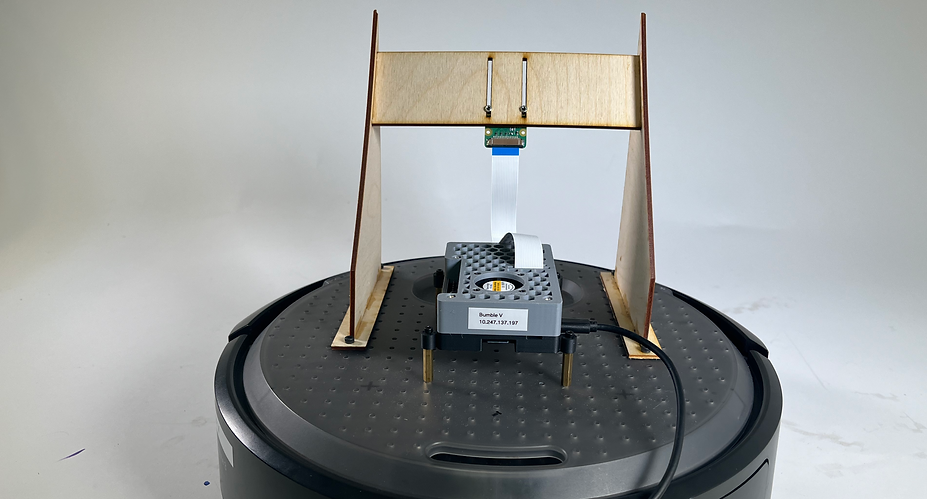
This was a partner project for my robotics class. The objective was to use the create 3 robot to navigate a tape maze. We created a phone stand to attach a phone to our robot to see the maze. From a classroom, one partner entered commands into an airtable that were received by the robot in a different room.
Step 1: Moving the Roomba
Our first step was to get the roomba moving. My partners worked on rotational and linear motion using the twist library.
Step 2: Calling the airtable data
Part of the requirement for this project was to control the robot using an airtable. Rather than troubleshooting everything at once, I first called and sorted airtable data in a separate script. Because my partners had not yet decided what to put in the airtable, I included a check to ensure the data was in the expected order. If someone switched linear and angular for example, the script would print "Check that table order is correct. It should be: Linear (0.25), Angular (1.0)." If the data is in the expected order, the linear and angular values are stored in variables so that they can be easily called once the driving is incorporated.

Preliminary Maze
In order to drive our robot through the initial maze, it needed to receive and respond to input from the airtable. I integrated our two pieces of code together and removed unnecessary definitions from our class. By default, the airable does not accept negative values, so our biggest shortcoming was only being able to turn left in the maze. Because we were using the create 3 however, we were able to turn in place very reliably.
What did we learn?
I learned how classes and nodes work in ROS 2 and discovered how delay can impact the motion of a robot. With our airtable setup, our robot was unable to take one rotation command at a time which led to difficulty with turns.

Silver Elephant Object

Rubix Cube Object
Object Recognition
For our second challenge, our robot needed to drive autonomously through a maze and turn anytime it recognized an object. For object recognition, we used google's teachable machine and trained the robot using images captured from the pi camera. We had 7 objects the robot needed to reconize, two of which are shown left. We created 8 object classes - one for each object (bear, elephant, rubix cube, darth vader, kiwi, mug, and mario) as well as one for the floor with no object on it.
Initial Code - training_test.py
Once the object recognition was working, I wrote code to process the data and structure commands based on what the camera was seeing. The output code from Teachable Machine printed a class name and confidence score with every iteration, but was subject to error that needed to be reduced. To create a more trustworthy object identification, I created a list of past objects seen and required an object to have been seen multiple times with high confidence in order for it to be confirmed. Once the object was confirmed, the next step was to check the object dictionary to find the corresponding direction for the identified object.
Final Code - RotateAngle.py
Once the setup for the initial code was working, my partners attempted to get the robot commands to come through. The main things we needed to accomplish were turning, driving straight, and sensing when we were 6 inches away from our object (which was when we needed to turn). They were able to successfully get the robot moving, but due to the complications of nodes and syntax associated with ROS2, had a hard time integrating the distance sensing as well. We decided to ignore this and integrate our intial code into the movement class in order to create a robot capable of going through the maze.
Final Maze
Because we were unable to get proper distance sensing working on our robot, we decided to introduce a delay in the turn after our the Create 3 detected the object. This helped us get closer to the goal of turning 6 inches from the object, but introduced error that varied from object to object depending on how quickly the robot confirmed the object. This can be seen in the video as the robot gets closer to some objects before turning to find the next.
What did we learn?
I learned how to publish code to github! I also found that I am improving at writing concise code that is understandable to others. I worked hard to create a base code that was well commented and had clear instructions for my partners to build upon. I think that one of the more difficult parts of robotics projects is to actually collaborate on code, and so one of my goals this semester has been to write code that is accessible and understandable to my partners.
Create 3 Robot completing the cup, kiwi, mario part of the maze
bottom of page